Team Status and Log
A team can report its status with a single tap. The status is visible to the whole command post without a radio call, and every status change accumulates in the Log tab.
Reporting status
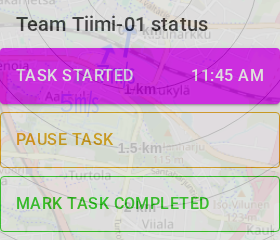
Open the Add marking dialog on the map. The Team status section, below the drawing tools, has three buttons:
| Button | Status |
|---|---|
| Start task | Working |
| Pause task | Paused |
| Mark task completed | Done |
The button of the current status changes its text to Task started, Task paused or Task completed.
- Start task and Mark task completed can be chosen from any other status, also after a pause.
- Pause task can only be chosen while the team is Working. A pause does not ask for an area and does not change any area's status.
All members of a team share one status: if Team-01/a reports a status, it also
applies to Team-01/b.
Position and timestamp
The timestamp is the moment you tap the button. The GPS position is stored whenever it is available, even if location sharing is off. Without a position the status is stored without one.
The buttons are hidden in read-only mode, in a spectator link session, and in a write-protected operation.
Choosing an area from the map
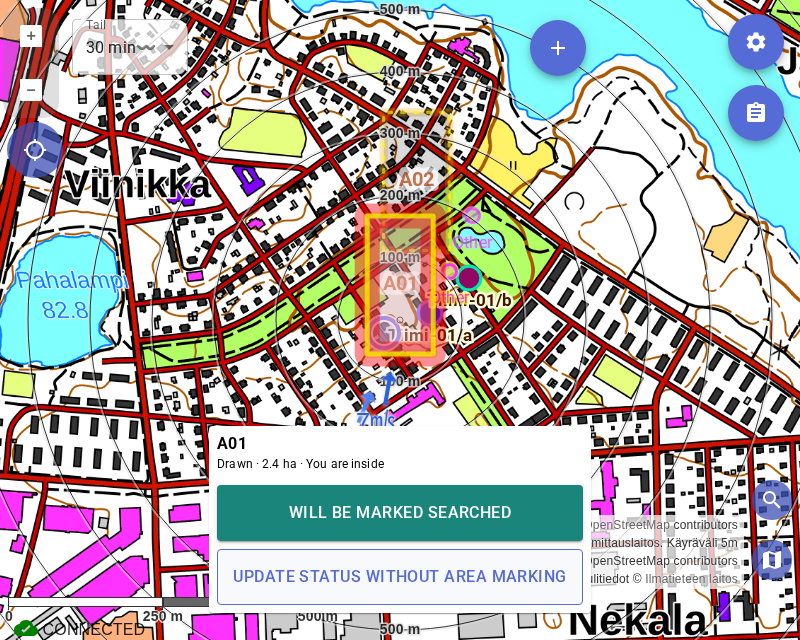
When you start a task or mark it completed, Karttahimmeli checks whether your own GPS position is within 50 metres of the edge of an area (inside an area the distance is 0 m). If it is, an area selector opens on the map:
- The candidate area is highlighted and the map stays visible.
- The panel shows the area name (or Unnamed area), its status, size and distance, for example Unnamed area · Drawn · 1.2 ha · 30 m.
- Confirmation is always required, even with a single candidate. With several candidates, the arrow buttons step between them.
- Start task sets the area's status to Active, and Mark task completed sets it to Searched.
- Update status without area marking saves the team status without touching any area. Closing the selector with Back does the same.
Tapping the map does nothing in the selector. The team status is saved only after you have made a choice. The area name and id are stored with the status entry.
Undo
After a status change an Undo button is shown for 10 seconds. It restores the previous status for everyone, and also the area status unless someone else changed the area in the meantime. Undoing a pause restores only the team status. The button is not shown after the time has run out or if another member has already changed the status.
No network connection
If the connection drops, the change is shown on your own device immediately with the label Waiting to be sent, and it is sent automatically with its original timestamp when the connection returns. The queue survives closing the app. Queued changes older than 8 hours are discarded.
Status on the Teams tab
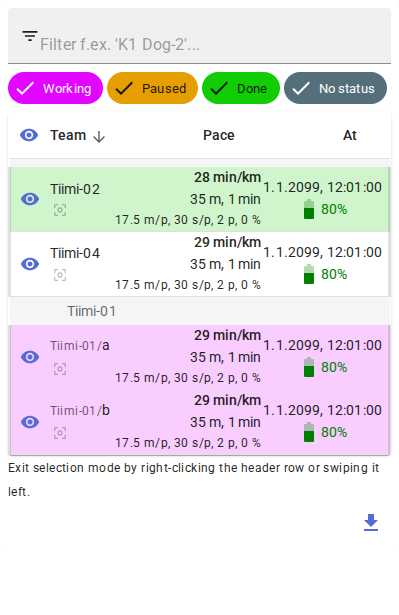
On the Teams tab each team row is colour-coded by status:
| Colour | Status |
|---|---|
| Purple | Working |
| Yellow | Paused |
| Green | Done |
The colours are the same as the area statuses: Working matches the area status Active and Done matches Searched. The colour combination is chosen so that the rows can be told apart also with red-green colour blindness.
The filter chips narrow the list by status. The chips appear when any team has a status.
- When no filter is active, all chips are bright and checked: teams of every status are shown.
- Tapping a chip hides the teams of that status. Statuses are switched off one by one, and tapping again brings the status back.
- The last shown status cannot be switched off. When all chips are checked again, the filter is cleared.
An active status filter is also listed among the active filters at the top of the Log.
Only teams that have shared a location
The Teams list shows only teams that have shared their location at least once. A team that has reported a status but has never shared a location is not shown in the list. Its status changes still appear in the Log.
Exporting team tracks to GPX
The button Export N tracks to GPX at the bottom of the Teams tab saves the
teams' tracks in a single file (reitit-DDMMYYYY-HHMM.gpx). See
GPX files for details. The button is not shown in
a spectator link session.
Log
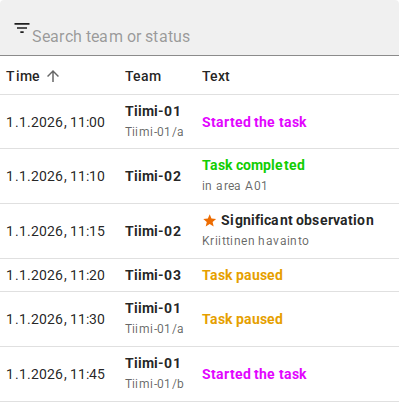
The Log tab is the fifth tab of the observation log (Observation Log and Filters). It gathers team status changes and significant observations in one chronological list.
The columns are Time, Team and Text. Click a column header to sort by it. The default is oldest first, and a second click reverses the order. Time is shown in the same format as on the Observations tab.
The text column shows:
- Started the task, Task paused or Task completed
- the word at area and the area name, if the status was tied to an area. An unnamed area is not shown in the text. If no name was stored with the status entry, the area's current name is shown.
- the name of the reporting member, if different from the team
- a yellow star and the title Significant observation for observations whose importance is Very significant. The observation's note is shown as extra text. An observation that is deleted or lowered in importance disappears from the Log.
Clicking a row moves the map to the status entry's area or coordinates.
The search field (Search team or status) matches the texts shown in the row: the team name, the status text, the area name and the observation note.
Where statuses are not shown
Statuses are not shown on the map or on the Observations tab, and they are not included in CSV or GPX exports or in Replay.